
Android guide · Webpage capture
How to take a full-page screenshot on Android
Save an article or tutorial as a long image you can keep and read in your photo app.
SnipRoll's Webpage feature opens a URL inside the app and captures the loaded page. Start with a normal article page, then check that the result includes the content you need.
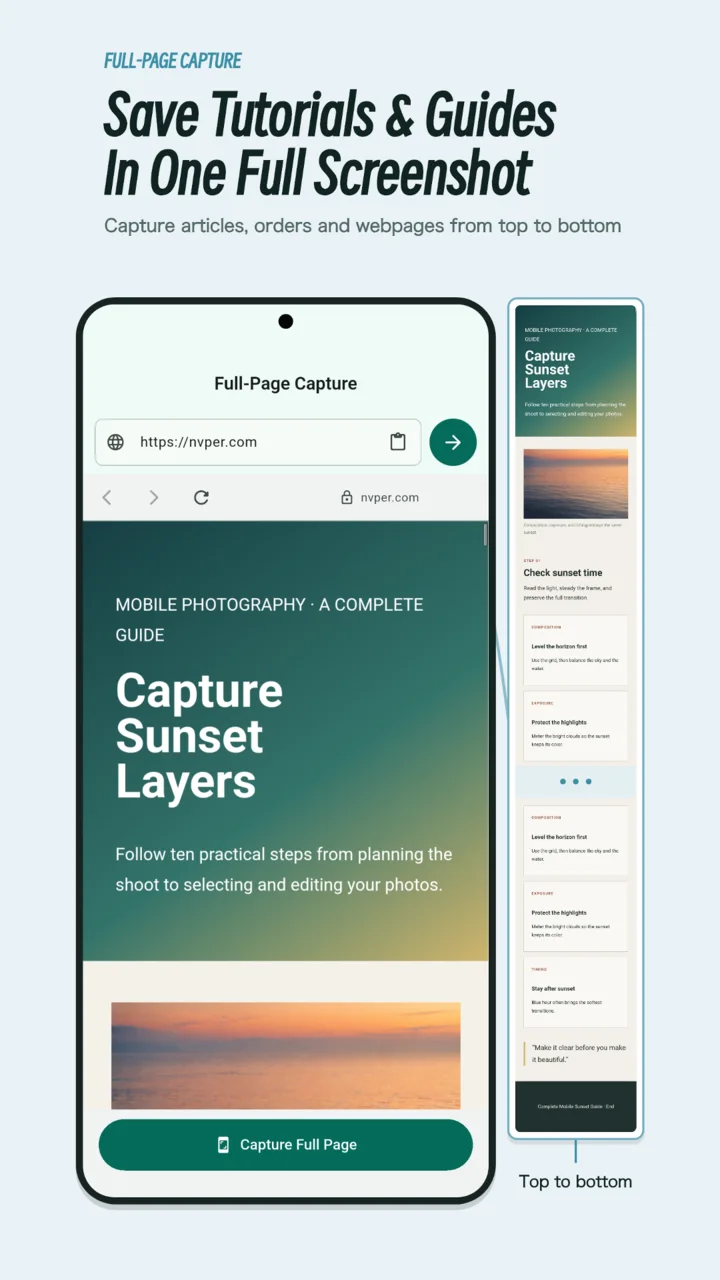
Choose the page to capture
Copy the address of the specific article or page from your browser. A direct article URL is usually easier to capture than a search results page, a social feed, or a page that continuously loads more items.
SnipRoll needs a network connection to load the site. Your existing Chrome sign-in may not carry over to the browser inside SnipRoll. If the site requires authentication, you may need to sign in there as well, and some sites restrict embedded browsers.
Open, capture, and export
Open Webpage from Home
In SnipRoll, tap Webpage. The capture screen is titled Full-Page Capture.
Paste the webpage address
Tap Paste and Open when the address is on your clipboard. You can also enter or paste the address into the address field and tap its arrow button to open the page.
Wait for the content you need
Let the loading indicator finish. Check the article's images and text, and dismiss any website banners you do not want in the screenshot. If images load only as you scroll, move through the page and give them time to appear before capturing.
A page can finish its initial load while still fetching more content. What matters is that the section you want to preserve is actually visible in the in-app browser.
Capture the full page
Tap Capture Full Page and keep the capture screen open while SnipRoll creates the long image. When processing finishes, the result opens in the crop view.
Check the top, middle, and bottom
Scroll through the result. Look for missing images, repeated fixed headers, blank sections, and the end of the article. Crop unwanted outer edges, keeping the title and any source context you need. If a large section is missing, return to the page and recapture after checking its loading state.
Save the long image
Finish any crop adjustments, then open the Export options. If your current screen shows Next, continue to the editor first. Choose Save Image to save the result to your photo library, or Share Image to send it through another app.
Open the saved file and zoom in to confirm the body text is readable. Very tall images can be difficult to read or may be compressed by a sharing app; check the received copy when sending an important article.
If a webpage does not capture cleanly
- The page is blank or reports a loading error
- Check your connection and the URL. Use Reload after the connection recovers. Wait for the actual page content before trying Capture Full Page again.
- Only part of a feed or article appears
- Some sites add content as you scroll, remove off-screen sections, or divide articles across several pages. Capture a stable, loaded section or open each article page separately. A full-page capture cannot guarantee the entire history of an infinite feed.
- A video, animation, or fixed banner looks wrong
- Dynamic content may change during capture, and some websites render floating elements differently. Pause moving content where possible and close dismissible banners before trying again.
- The page requires a login or blocks capture
- Use the website's supported access and sharing options. SnipRoll does not bypass authentication, paywalls, or a site's content restrictions.
If you already have screenshots of the content, follow the Android screenshot stitching guide to combine a continuous, overlapping sequence.