
Android guide · Dialogue Stitch
How to make a subtitle screenshot collage
Keep the opening scene and arrange the following lines beneath it, all in one image.
SnipRoll's Dialogue feature keeps the first selected frame and lets you adjust how much of each later frame is shown. It works well when the subtitles sit near the bottom of screenshots with consistent dimensions.
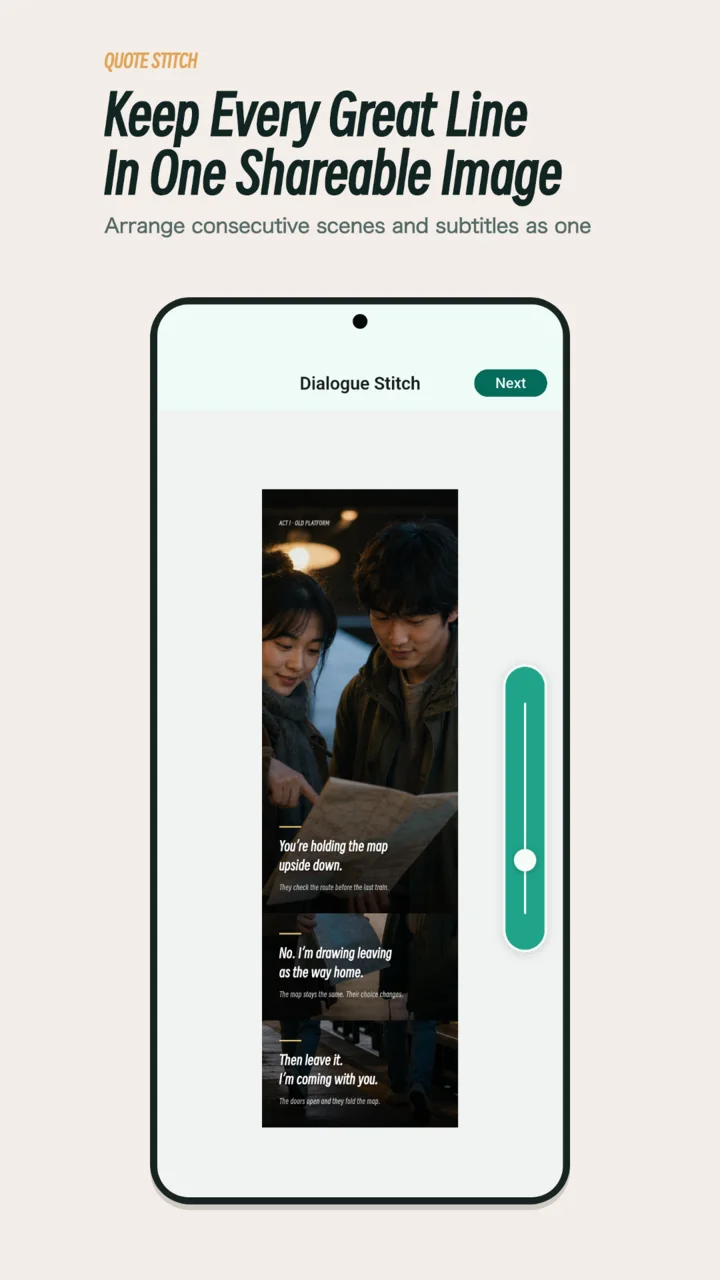
Prepare your dialogue frames
Take a screenshot for each line or exchange you want to include. Pause until the entire subtitle has appeared and any playback controls have disappeared. Use material you have permission to capture and share.
- Keep the same orientation, player size, and subtitle settings for the sequence.
- Choose a first image that gives the scene enough context; it will remain the full opening frame.
- Use one screenshot per new line rather than several nearly identical copies of the same subtitle.
- Leave room above two-line subtitles so both lines survive the crop.
This workflow arranges the pixels already present in your screenshots. It does not transcribe, translate, or generate subtitles. If a player saves a black or protected frame, use that service's permitted sharing features or a different source you can capture.
Build and export the collage
Open Dialogue
On SnipRoll Home, tap Dialogue. Select your screenshots in the order the lines should be read, beginning with the main scene.
Check the selected sequence
Review the numbered selection badges and remove unwanted duplicates. If the order is wrong, deselect the affected images and select them again in the intended sequence. Tap Next to open Dialogue Stitch.
Adjust the visible subtitle strips
Use the vertical overlap slider on the right. As you adjust it, more or less of the bottom of each later screenshot stays visible below the first frame. Find a setting that includes every line of dialogue with a little breathing room.
The same control affects the later frames together. Start with screenshots that place subtitles at a similar height so one setting can work across the sequence.
Read the entire collage
Scroll from the first scene to the last strip. Check that no letters are cut off, every line is in order, and a two-line subtitle has not been reduced to one line. If you need more room, widen the visible strips using the overlap slider.
For subtitles placed at different heights, keep taller strips or prepare more consistent source crops and select them again. Tap Next to continue to the editing tools for annotations or other finishing touches.
Export the result
In the editor, check the final crop and open the Export options. Choose Save Image to save the collage to your photo library, or Share Image to choose a sharing app.
Check the saved image at a normal reading size. If the text feels too small after sharing, use fewer lines in each collage or share the image as a file when the destination supports it.
If the subtitle strips need adjustment
- The upper line of a subtitle disappears
- Increase the visible strip height until both lines fit. Judge the setting using the tallest subtitle in the sequence.
- Too much of the scene repeats below each line
- Reduce the strip height gradually. Stop before the crop touches the subtitle letters or removes context you want to keep.
- One frame looks stretched or has different-sized text
- Check the original frame dimensions and player zoom. A consistent capture setup produces a more even result than mixing portrait, landscape, and resized screenshots.
- The dialogue is in the wrong order
- Return to image selection and check the sequence. The app follows your selected order; it does not infer the story from the text.