01 · Screenshots and chats
Stitch screenshots on Android
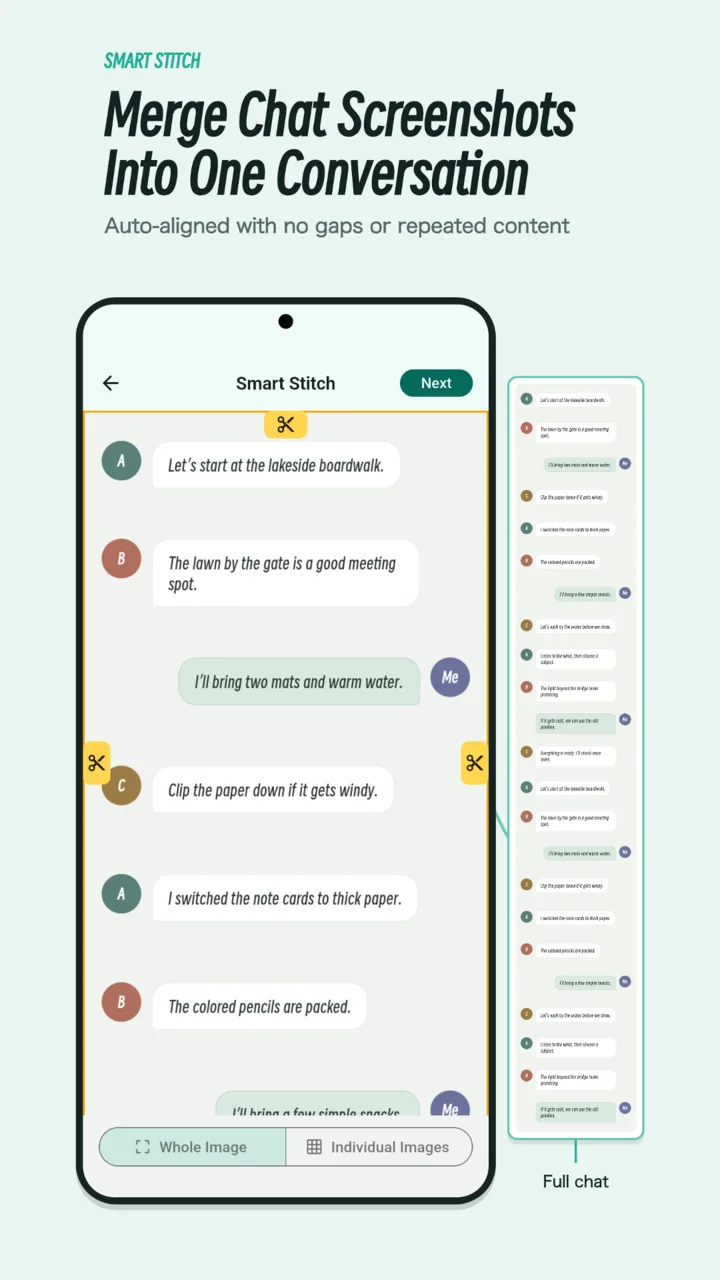
Keep a conversation in order, remove repeated overlap, and check each seam.
Read the stitching guide → SnipRoll
SnipRoll for Android
Combine overlapping chat screenshots, save a webpage as a long image, or bring a scene and its dialogue together.
Start with the content you already have. SnipRoll gives you a preview to check, crop, and refine before you save or share the result.
Each guide covers the source material, the controls to use, and the checks that make the final image easier to read.
01 · Screenshots and chats
Keep a conversation in order, remove repeated overlap, and check each seam.
Read the stitching guide →02 · Articles and webpages
Open a URL, wait for its content, and save a long image of the page.
Read the webpage guide →03 · Scenes and subtitles
Keep one scene above a sequence of readable subtitle strips.
Read the dialogue guide →Already have overlapping screenshots? Open Smart Stitch. Matching content between adjacent images gives the app a basis for alignment. Unrelated pictures with no common content need a manual layout instead.
Have a webpage address? Open Webpage to use full-page capture. This works with the page loaded inside SnipRoll; a website may require a separate sign-in or limit what can be captured.
Have several frames with subtitles? Open Dialogue. Adjust how much of the later frames remains visible so the scene and its lines read in sequence.
Zoom in to check text and joins. Remove unwanted edges, use the editing tools to mark important details, and hide names or other private information before sharing a conversation.
Image processing happens on your device by default. Webpage loading, purchase verification, and support features use network services as described in our Privacy Policy.