
Before you start
Copy the address of the specific article you want to save. A stable article page is easier to capture than an infinite feed or search results.
- Connect to the internet so the page can load.
- A browser login may not carry over to SnipRoll. Some sites require another sign-in or restrict embedded browsers.
- Keep the original URL separately if you will need its links, updates or source later.
Step by step
Open Webpage
On Home, choose Webpage to open Full-Page Capture.
Paste the article address
Use Paste and Open, or enter the URL in the address field and tap its arrow to open the page.
Let the content finish loading
Check that the text and pictures you need have appeared. Scroll through images that load on demand and dismiss unwanted website banners before capture.
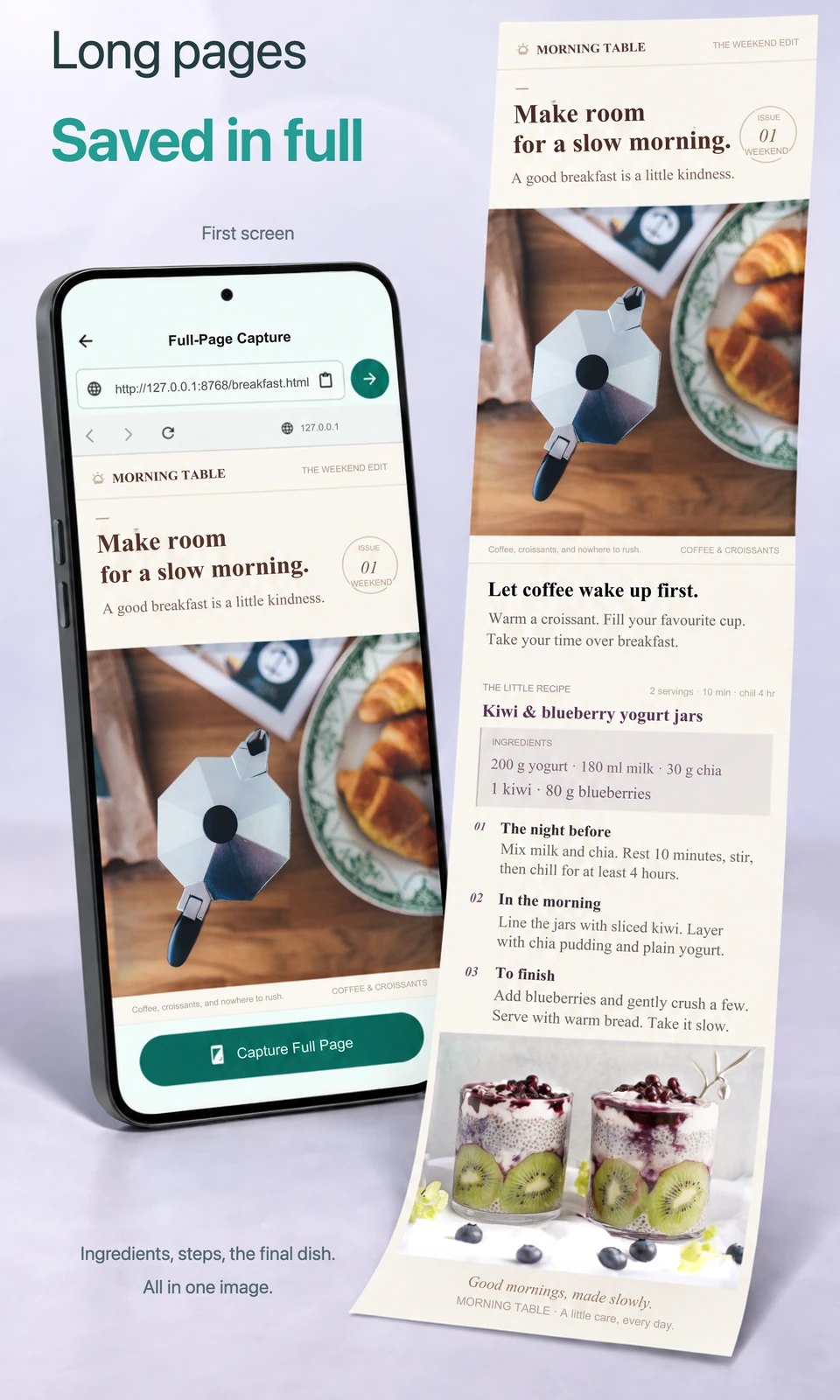
Capture and check the whole page
Tap Capture Full Page and keep the screen open. When the crop preview appears, inspect the top, middle and end for missing pictures, blank sections or repeated fixed headers.
Trim, save and share
Crop unwanted edges while keeping the title and source context. Open Export, continuing to the editor with Next if needed, then choose Save Image or Share Image. Check that the saved text is readable.
If it needs a little adjustment
The page is blank or will not load
Check the URL and connection, reload, and wait until the actual content appears before capturing again.
Part of the page is missing
Some sites add or remove content as you scroll, or split an article across pages. Capture a stable loaded section or save each article page separately.
A video or floating banner looks wrong
Pause moving content and close dismissible banners where possible. Use the website’s permitted access options for protected pages.